Transaction Log by Object

The Transaction Log by Object records detailed, move by move data regarding the flow of Work Items through the objects in your Simulation.
Setting Up the Transaction Log by Object
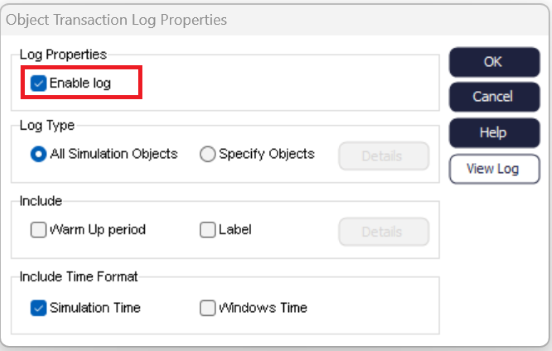
Log Type
Choose whether you want to generate a log for all objects in your simulation or Specify Objects and click on the Details button to select which objects you want to include in the Transaction Log.
Of the Advanced Building Blocks, only Conveyors can be added to the Transaction Log because the other Advanced Building Blocks (Tanks, Process Ovens, Loaders and Vehicles) are used to simulate continuous flow, meaning Work Items will not retain their original information on exit.
Include
If your simulation uses a Warm Up Period, you can include it in the Transaction Log. You can also include Labels - click on the Details tab to select which Label should be included.
Time Format
Choose between displaying the Transaction Log based on Simulation Time, the current time format of your device (Windows time), or both. If you choose Windows time on Simul8 Online, the US date format will be used (MM/DD/YYYY).
Transaction Log by Object Results
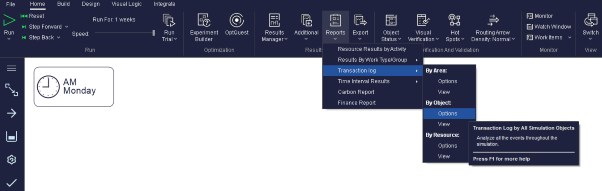
- Go to .
- Go to .
- Go to .
- Open the CSV file 'TransactionLogByObject.csv' generated automatically by Simul8 and found in your Documents > SIMUL8 folder. Please rename and save the file should you wish to use this with external tools.
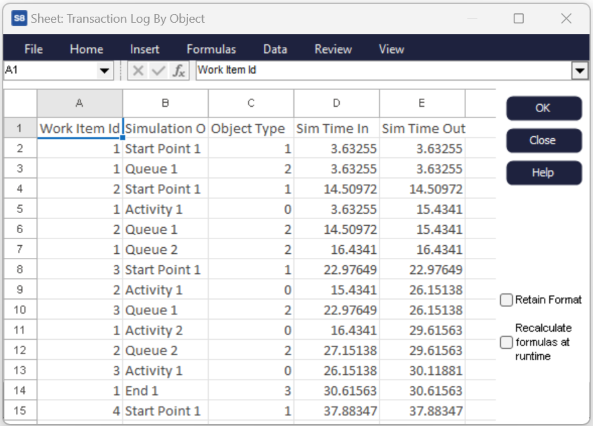
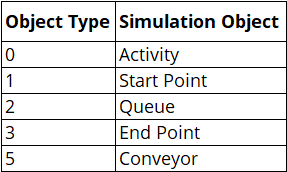
The log contains the Work Item ID, the Simulation Object, Object Type, Time In, and Time Out, and any Label values you have chosen to include. If you chose to run a Trial, an additional column referencing the Trial Run Number will also be included.
At the end of the log you will find a series of entries which only show Time In - these cover all items that remain within Simulation Objects at the end of the run.
Note
On Start and End Points, Time In and Time Out will always take the same values.
If you use Resources in your model these will take Work Item IDs (e.g. you have 10 of a Resource named Resource 1, so your Work Items will begin from ID 11).
Creating logs for large numbers of trial runs or simulation objects may increase the time it takes to process the log at the end of run. You can track this using the Progress Bar at the bottom left of the Simulation Window.
