Transaction Log by Area

The Transaction Log by Area allows you to collect very precise timing and Label value data between pairs of objects.
Setting Up the Transaction Log by Area
Go to Home > Results Manager > Transaction Log > By Area > Options.
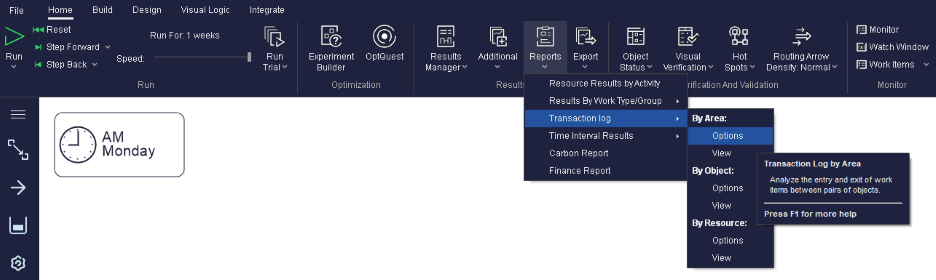
Make sure the "Log detailed, transaction-by-transaction, data" option is
ticked.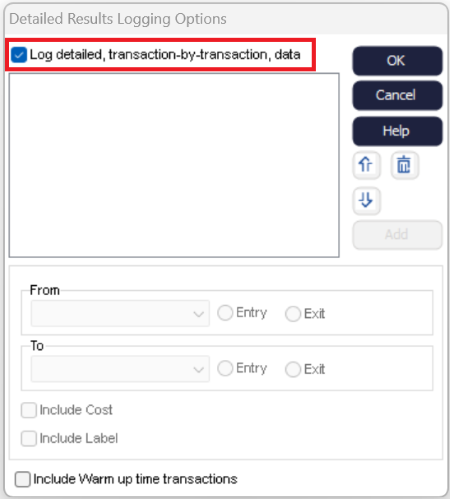
Use the Add button to add a start and finish object for the Results collection. Use the Up and Down hand button to alter the order that results will ultimately appear in the output sheet.
You can also choose to include Cost information, Labels, and Warm Up time.
Transaction Log by Area Results
After running a simulation, there are three ways to open the transaction log:
- Go to .
- Go to .
- Open the CSV file 'TransactionLogByArea.csv' generated automatically by Simul8 and found in your. Please rename and save the file should you wish to use this with external tools.
The Transaction Log by Area will detail the overall time taken for the Work Item to
move between the two specified points of the simulation. It should look like
this: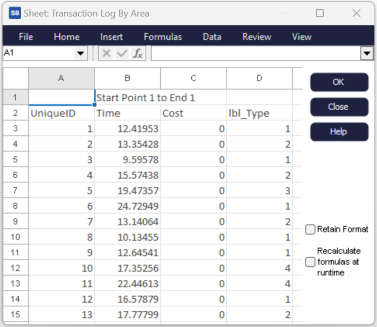
The Transaction Log by Area will include the Unique ID of the Work Item, Time, Cost (if included) and any Label values you have chosen to include.
