Share a simulation using Simul8 Online (legacy)
Note
This sharing method is available only to certain eligible customers. For new sharing workflows, go to Share simulation results with Minitab Dashboards.
In This Topic
Share simulations with colleagues, even those without a Simul8 license, to experiment with simulations, generate discussion, and drive collaboration and decision making. Shared simulations can be opened in a browser, allowing anyone to run and experiment with simulations without installing Simul8. Your stakeholders can also access a downloadable viewer mode.
The Share feature is restricted to only sharing to other users in your organization, managed by your email domain. For example, an @Simul8.com email address can share with other @Simul8.com email addresses, or similar ones such as @Simul8.co.uk.
Sharing a simulation
You can share one simulation file with up to 5 others. To share a different simulation, the first one must be revoked first.
To start sharing your simulations, follow these steps.
Step 1:
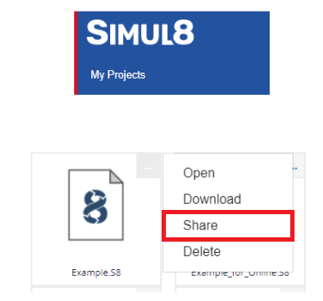
Step 2
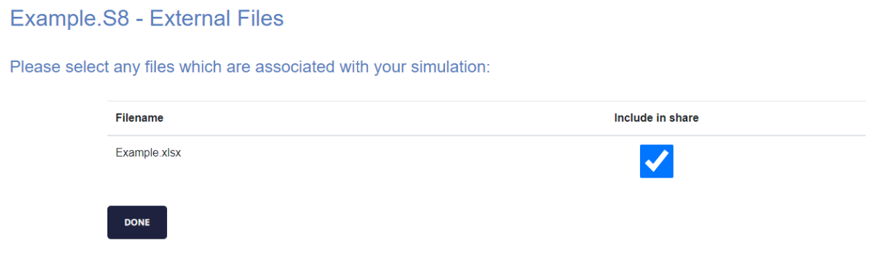
Step 3:
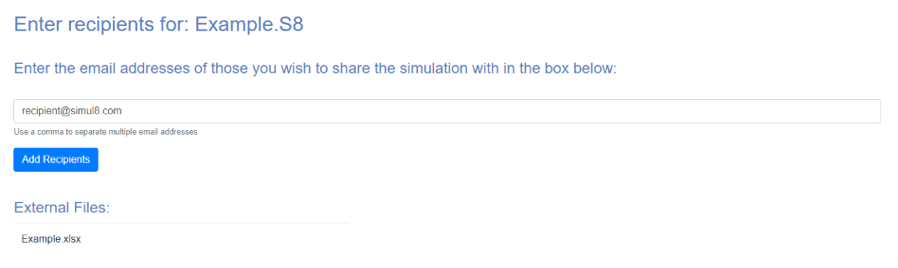
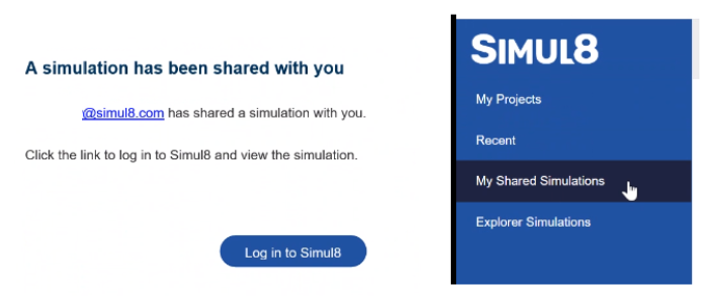
Receiving a Shared Simulation
Your colleague(s) will receive an email prompting them to login in to Simul8 Online. Please note that the recipient will receive an email to log in and view the shared simulation, regardless of whether they have a license or not. They should proceed with this and view "My Shared Simulations". They will have access to this model for 7 days from the last modified & saved date. This means that if you save & share a simulation today, the recipient has 7 days to access and view the model online.