Creating an Excel Interface
- To make it easy to experiment with the simulation
- To allow the client to experiment without having to learn Simul8
- To document the simulation
This same interface could also be built within Simul8's internal spreadsheets, as they offer most of the capabilities that Excel does. However, connecting to EXCEL enables clients who don't use Simul8 to interact with it through EXCEL. Non-Simul8 users can populate the EXCEL file with their data and the Simul8 license holder can run their scenarios.
How to Create an Excel Interface
- Excel Connections: You can import/export these using the Excel Connections dialog or through Excel Connection related commands in Visual Logic. Running this in Visual Logic, allows you to run them at the time point of your choice.
- Visual Logic commands for transferring data.
The following examples show how the two approaches are implemented over three steps, for importing data from Excel, for using this data, and from exporting data to EXCEL.
Step 1: Getting the information from Excel
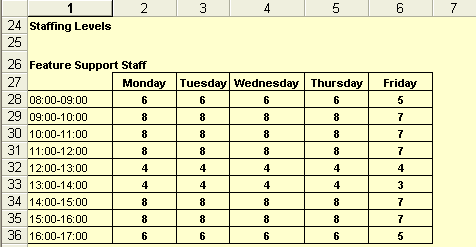


The first parameter of the command holds the Simul8 variable the information is to be written to, in this case the ss_Staff Availability. As our variable is an internal spreadsheet the cell reference [1,1] tells Simul8 what cell to start writing the information in.
The second parameter holds the names of the .xlsx file, and the sheet where the information is located. The remaining parameters tell Simul8 the EXCEL cell to start copying from and how many rows and columns of data to copy.
We try to avoid reading information in from Excel during a run (such us on Start Run), as this could really slow down the simulation. Generally, we read in all the information we need during 'On Reset' logic as this way the information will be updated just before a run.
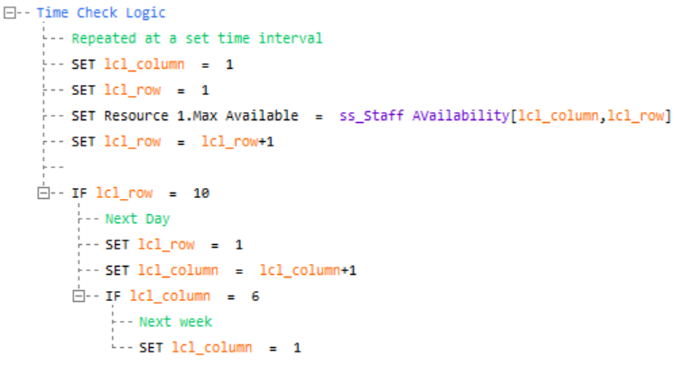
Step 2: Using the information from Excel
Step 3: Sending information Back to Excel

As when importing, you can export all Excel Connections, using the "Export all Excel Connections" command.
If you'd like to export to Excel the value of a global variable which stores the utilization result of Resource 1, you can use the Set in Excel command.

The first parameter of the Set in Excel command tells Simul8 what information is to be written to Excel, in this case gbl_Utilisation. The second parameter holds the names of the .xlsx EXCEL file, and the sheet where the information is located. The remaining parameters tell Simul8 where in Excel to write this information to and how many rows and columns of data to copy. (You only need the last 2 if you're copying information from a spreadsheet otherwise just enter 1 for both.)
Tips
- If a lot of data has to be included in the Excel Interface, have a summary sheet that lists the main inputs and outputs clients are likely to want to examine.
- If the structure of the sheets changes as the simulation evolves rather than change all your Visual Logic references you can create another sheet that is nicely formatted and has direct links to the old sheets, that you can hide.
- Lock cells so people don't think they can move them around!
- Save different scenarios in different Excel files
- Your Excel spreadsheet must be opened to use it with the simulation. If you've forgotten to open it you'll get the error message "EXCEL is not responding to a conversation request".
