COM Example Using Python
This example outlines how to use Python IDLE and COM to run a Simulation as well create a
PDF report of the KPI results to provide to stakeholders.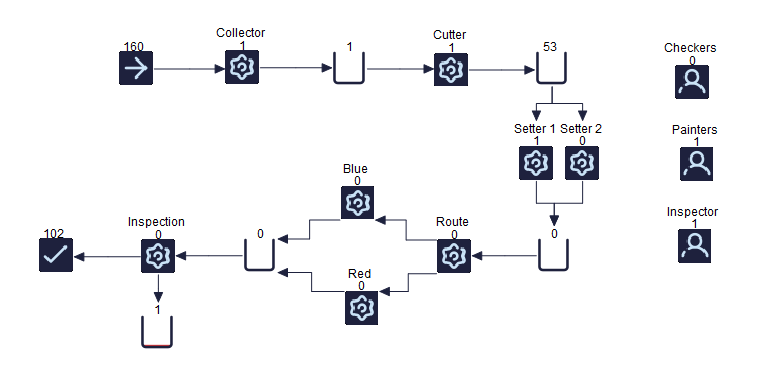
The Simul8 Model in the image above is a factory model with a few Activities needing
several Resources to function. In the Export Results section, the KPI results are set
to export to a CSV file on end run. This allows us to export the results without
triggering this manually within Simul8 when using COM to call the simulation.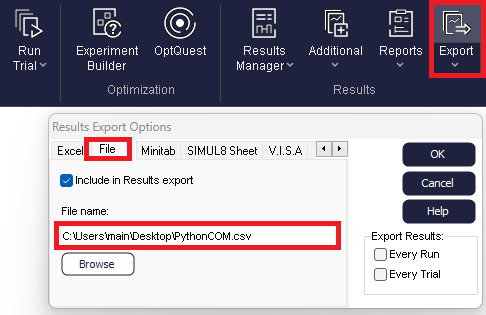
Within the Python IDLE the simulation is connected as detailed here. It is then run
using the commands below.
Note
The first section may not be needed if Simul8 has been connected before and can be removed. This is what connects the library, more info found here.
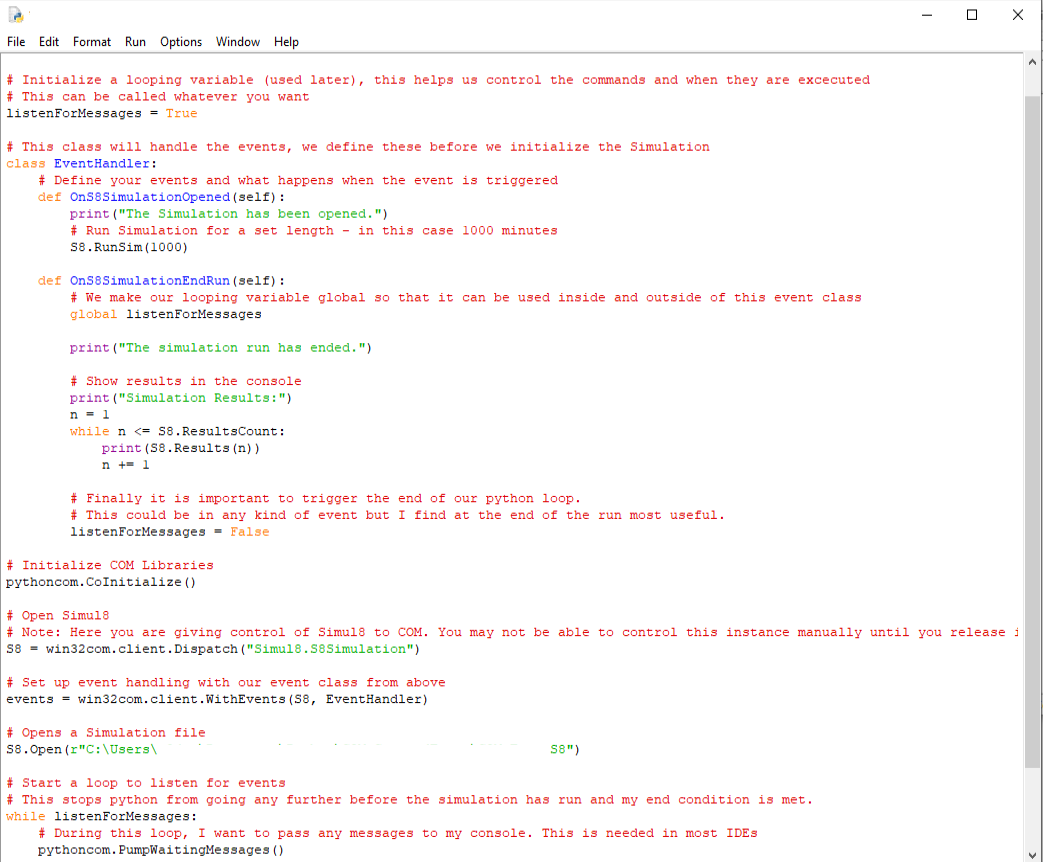
An Event using the Event Handler was also scripted in to allow the KPIs to be previewed
directly into the IDLE Shell. Here the Event handler is the overall Class with the
Simulation Event function defined as "OnS8SimulationEndRun". Within the function the
"ResultsCount" command in the same Class of commands is utilized to print the
results.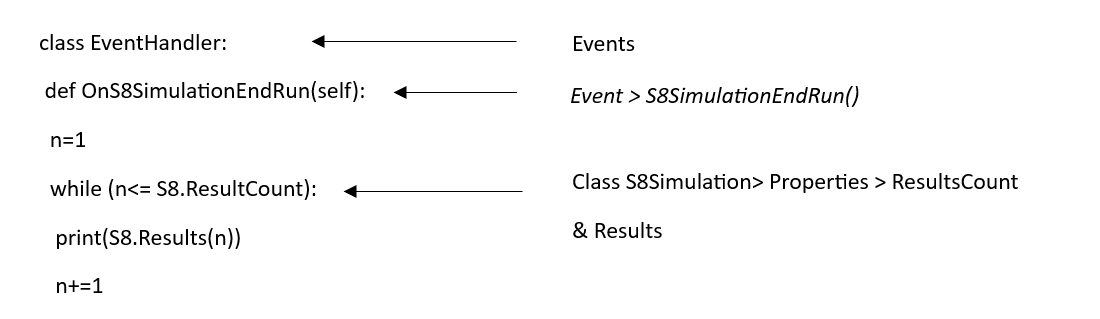
These are just some of the several commands available with Simul8 and COM with the full list available here.
The next section of the .py file is used to write a pdf file highlighting the KPIs of the
run. When running this example on your own machine remember to connect the CSV within
the export option of Simul8 to the correct section, this similarity will need to be done
for the Simul8 file location and the read file section of the Python script.
Note
The packages needed in the script will need to be preinstalled for the script to function.
When run a Simul8 PDF will appear in the directory selected. It will also be called in
the last section of the .py script. This will display results similar to the following
image depending on the selected run time.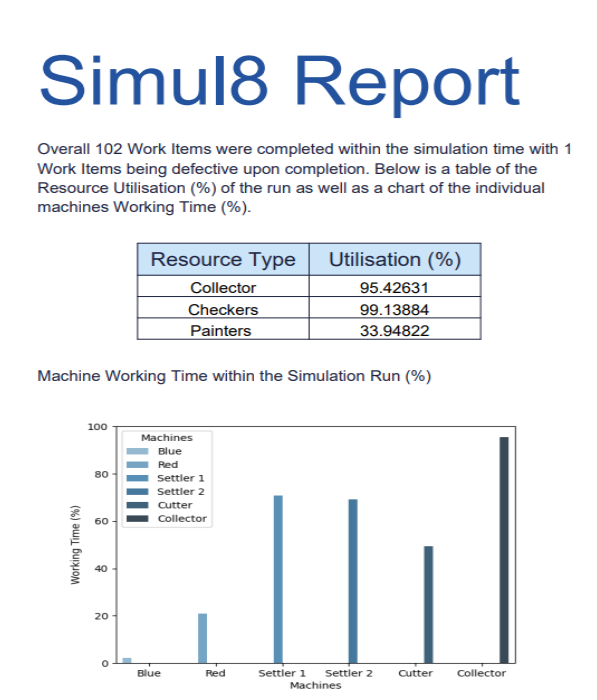
Files used in this example:
