High Volume
When you are simulating large quantities of Work Items or your Work Items represent quantities which are often summarized rather than individually represented, such as gases (tonnes), liquids (liters, gallons), or sand (kgs), you can use the High Volume feature.
High Volume is particularly useful for Business Process Re-engineering (BPR) and Fast-Moving Consumer Goods (FMCG) applications as well as many others. In these cases, very high volumes of work may be processed at Activities and it may not be necessary to individually distinguish between every piece of work an Activity does. For example, documents being processed by an Activity may each be different but a "data entry" Activity does not need to simulate them differently. This contrasts with lower volume applications where every piece of work may be very different (i.e., patients in a hospital where every patient has a different Label and is treated differently depending on this Label).
High Volume lets Simul8 process large numbers of transactions very quickly in batches while still retaining the ability to consider work individually (in terms of timing).
How to use High Volume
To use High Volume in a simulation, you need to create a QUANTITY Label. This is a special Label in Simul8 that indicates the volume (i.e., tonnes, liters, etc.) of Work Items. You can create the QUANTITY Label from Data and Rules > Labels.
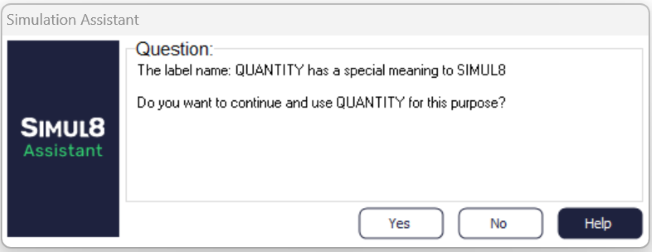
When you create a QUANTITY Label, Simul8 will display the following message. Click Yes and then follow the usual process for creating a label.
High Volume on Queues

- The Queue Count (displayed on top of the Queue) refers to the sum of all
QUANTITY Label of Work Items in the Queue. For example, if your QUANTITY
Label is set to a fixed value of 3000 and 2 Work Items entered the Queue,
its count will be 6000.
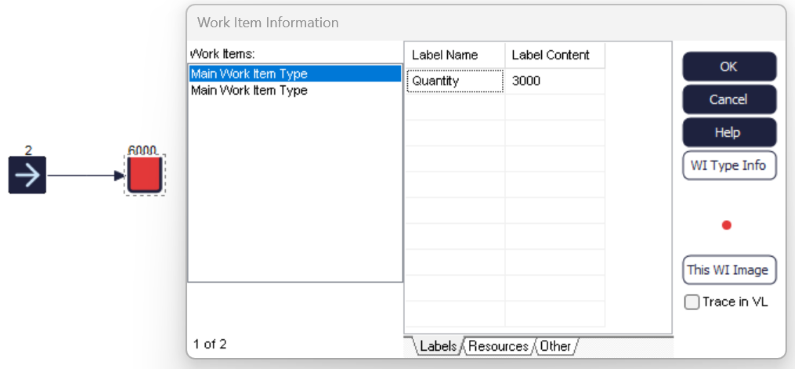
- If you set a capacity for the Queue, it will refer to the sum of the QUANTITY Label. If the capacity is 4000 and there is already a Work Item with a QUANTITY Label of 3000, no other Work Item will be able to enter the Queue.
Assemble High Volume
When you check the Assemble High Volume box, all Work Items in the Queue will be merged into one and their QUANTITY Label will be the sum of each Work Item's QUANTITY Label.
For example, if there are 3 Work Items waiting in a Queue and each has a QUANTITY of 3000, there will be a single outgoing Work Item with a QUANTITY of 9000 (3000*3). This feature is particularly useful when modeling Work Items that can be mixed together (for example, sand in a silo or wine in a barrel).
High Volume on Activities

Checking the High Volume box on an Activity means that the timing information now relates to each unit within the QUANTITY Label of a Work Item, as opposed to the Work Item itself. For example, if a Work Item has a QUANTITY Label of 3000 and the Activity's timing is set to Fixed 5 (minutes), then the Work Item will take 15000 minutes (3000*5) to process.
Batching with High Volume
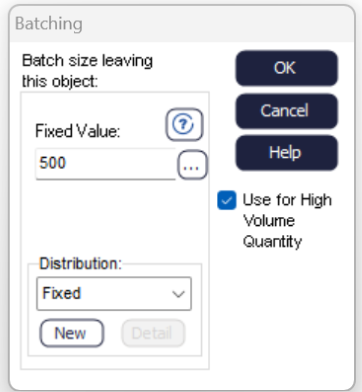
For example, if a Work Item has a QUANTITY Label of 3000 and the batch size is set to a fixed value of 2, you will get 1500 Work Items each with a QUANTITY Label of 2 (3000/2).
Collecting with High Volume
Using Collect on a High Volume Activity means that the Activity will collect as many units as you have entered in the collect number box. For example, if you set the collect number on the Routing In dialog to 4000 and Work Items have a QUANTITY Label of 3000, the Activity will collect 1 Work Item (3000) plus one-third of a second Work Item (1000). Likewise, when collecting 2000 in the above situation, the Activity will automatically route in one Work Item with an adjusted QUANTITY Label of 2000, and keep another Work Item (with a QUANTITY Label of 1000) in the Queue.
Percent Routing Out with High Volume
If you use Percent Routing Out rule at a High Volume Activity, then the Work Item (batch) is automatically split into as many Work Items as there are routes out of the Activity and each QUANTITY Label is changed to fit the percentages specified.
For example, assuming a QUANTITY Label of 3000, if an Activity can route out to 2 different containers (1 and 2), and you set the Route Out Percent to 30% for Container 1 and 70% for Container 2, you will get 1 Work Item in Container 1 with a QUANTITY Label of 900 (30% of 3000) and 1 Work Item in Container 2 with a QUANTITY Label of 2100 (70% of 3000).
Remember you do not need to use the High Volume mode at every Activity that processes Work Items that are actually batch of work. Meaning, you can simply use High Volume at some Activities (where needed) and then revert back to the standard Simul8 functionality (on a per-work-item basis) for other Activities.
To see how High Volume can be implemented within a simulation, download the following file.
