Overview
Connect your data across the Minitab Solution Center
In the Minitab Solution Center, your data stays connected to its source, eliminating the need to repeatedly import or recreate it. Prepare your data once, use it in multiple projects, and refresh when new data becomes available.
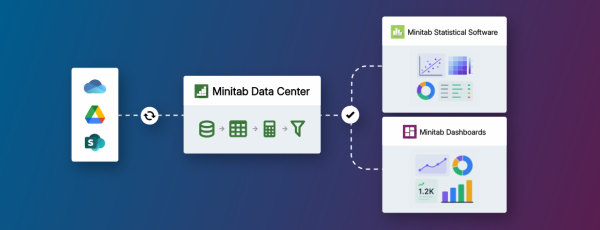
The Minitab Solution Center enables you to:
- Connect projects to data stored in supported cloud repositories.
- Prepare data in Minitab Data Center and use it in Minitab Statistical Software or Minitab Dashboards.
- Refresh projects to pull in the latest changes from your connected data source.
- Reuse prepared data across multiple projects when your workflow requires it.
See Shared connections for more information.
Access your utilities and files
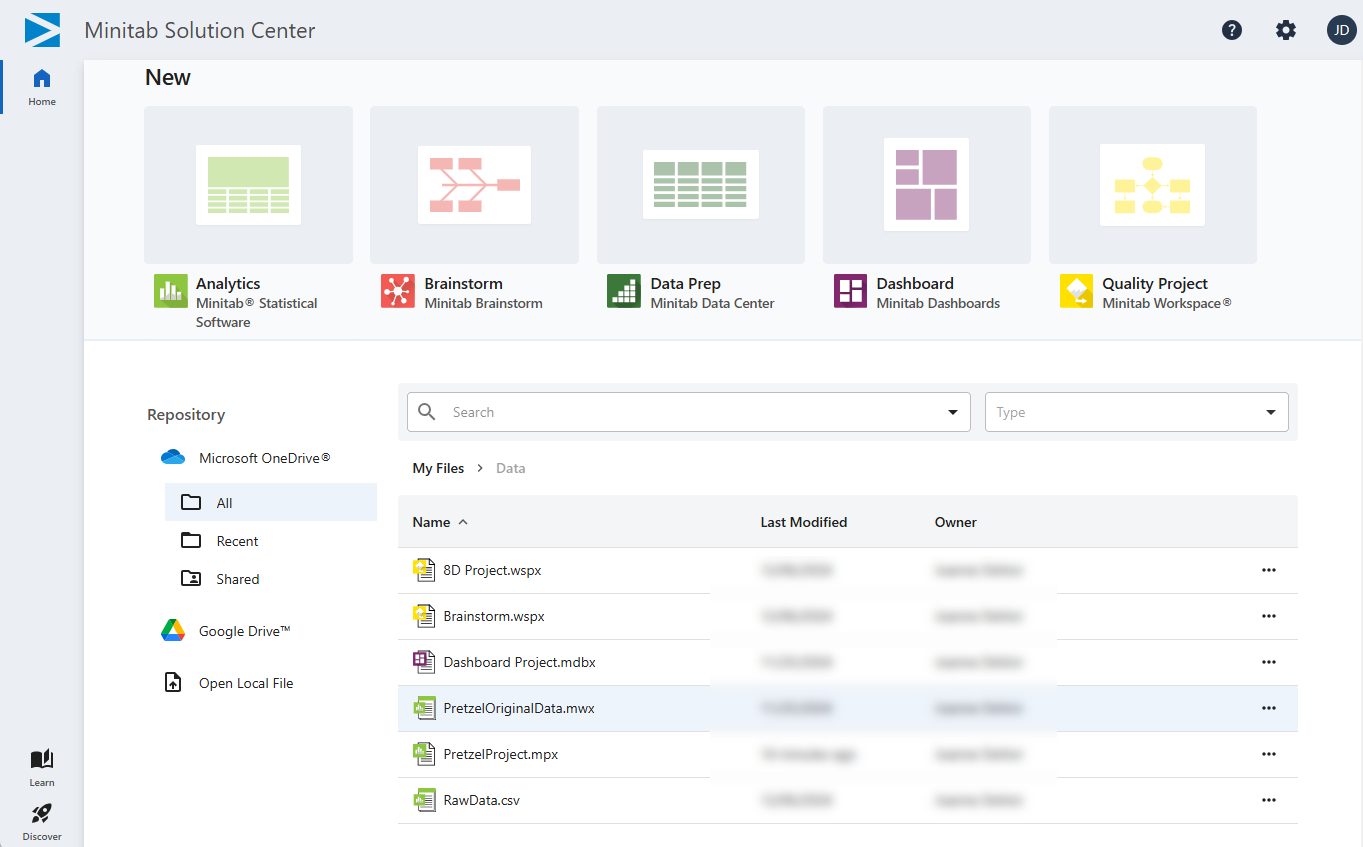
The home page of the Minitab Solution Center shows all the Minitab
web utilities that are part of your subscription. You can directly open your Minitab files
from an online repository or from your local files. When you are logged into an online
repository, you can search for files based on file type and key terms. You can also access
recent files and select files to mark as favorites  .
.
Access online repositories
You can store your Minitab files in Microsoft OneDrive®, Microsoft SharePoint®, and Google Drive™. You can also open data from Minitab Connect®. Minitab, LLC processes but does not store or have access to your data.
In addition to opening your repository files directly from the Minitab
Solution Center, you can also use the Open
menu in Microsoft OneDrive®, Microsoft SharePoint®, or Google Drive™.
Note
If you do not see the Open in Minitab option, sign into the repository from within the Minitab Solution Center to configure the integration point.
When you are working on a project and are signed into a repository, you can rename the file, move it to a different location within the repository, or share it.
You can be simultaneously signed into multiple online repositories, but you can specify only one save location. When you sign out of an online repository, Minitab Solution Center closes any open files that are stored in that repository.
Set save location
- From the Minitab Solution Center home page, sign into your online repository.
- Select Settings
 in the repository section of the landing page.
 - Select to turn Autosave on or off.
- Select Change to browse to the location where you want to save your files and then choose Select. Your save location is displayed.
Navigate between utilities
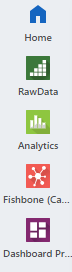
Select  at any time to return to the Minitab Solution
Center home page.
at any time to return to the Minitab Solution
Center home page.
Preview data
Minitab Solution Center displays a preview dialog for data that you can load in Minitab Statistical Software or Minitab Dashboards.
When you open a CSV or an Excel file that contains a single sheet, you can perform basic cleaning options directly in the preview dialog. To perform more advanced data cleanup, select Clean and Transform to open the data in the Minitab Data Center.
Modify language and date/time settings
Select in the upper right to change the language and date, time, and
numeric formats based on region. These settings apply to all utilities in the Minitab Solution Center.
Use Minitab AI
The Minitab Solution Center includes AI capabilities for several apps. Use these capabilities to enhance your efficiency, receive personalized assistance, and improve decision-making with data analysis.
Important
AI technology may make mistakes. It is the user’s responsibility to ensure the output is accurate, appropriate, and meets your organization’s standards and requirements. For more information, see the Minitab Trust Center.
Learn more

- Select Discover to browse all the solutions that Minitab offers.
- Select Learn to access product assistance, support videos, datasets, and more.
