Shared connections
Instead of saving separate copies of the prepared data in each project, a shared connection stores a reference to an MDCX file in a supported repository. Update the Data Center project, then refresh the shared connection in each projects to pull in the latest prepared data.
Shared connections versus embedded connections
The apps within the Minitab Solution Center can use shared data connections or embedded data connections.
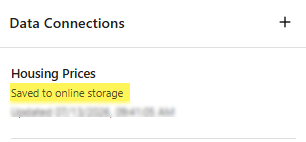
- Shared connection
- Use when the data are reused across multiple Minitab Statistical
Software or Minitab
Dashboards projects. Storage location: A reference points to a shared MDCX file, that is saved to the cloud.
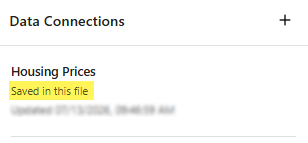
- Embedded connection
- Use when the data are used by only one project.Storage location: A copy is saved in the current project file, such as an MPX or MDBX file.
Add a shared connection
When you add a shared connection, the project stores a reference to an existing Data Center project (.mdcx) file in a supported repository.
- From the Output node, select Open In.
- Select the data destination, either a new or existing project or dashboard.
- Open the Data Connections panel.
- Select Add Connection.
- Select the repository that contains the MDCX file and then select the file.
- Select Open.
Edit a shared connection
When you edit the shared connection, the underlying MDCX file opens in the Data Center. Changes are saved automatically to the MDCX file.
- Open the Data Connections panel.
- Open the menu for the shared connection.
- Select Edit Connection.
- Make changes in Data Center.
- Return to each project that uses the shared connection and refresh the connection to use the latest data.
Refresh a connection
Changes to the shared MDCX file are automatically saved in the Data Center, but projects that use the shared connection do not update automatically. Refresh the shared connection in each project to get the latest prepared data.
- Open the Data Connections panel.
- Find the shared connection and hover over the details.
- Select Refresh Connection
 .
.
Refreshing updates the project with the current data from the shared MDCX file.
