Creating data pipelines
What is a data pipeline?
- Data remain consistent and reliable
- Updates occur on demand
- Teams use the same trusted dataset
- Errors are identified before the data are used
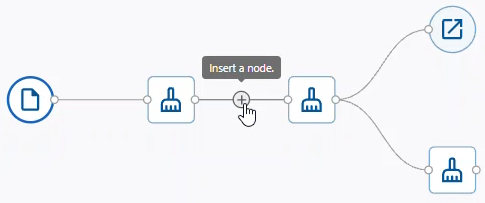
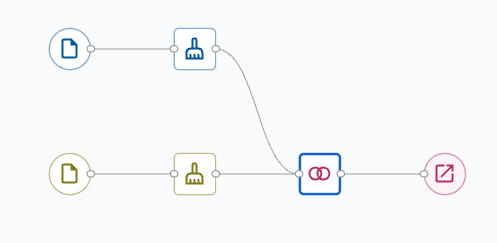
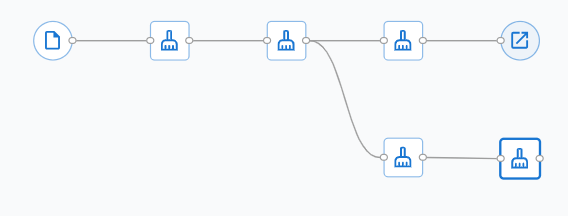
The data pipeline appears as an interactive visual diagram that lets you add, remove, and modify nodes while receiving real-time processing status and error messages.
Note
Each pipeline supports up to 60 processing nodes, plus one output node (61 nodes total). You can have up to ten data source nodes.
Pipeline views
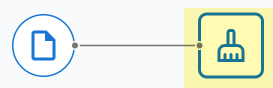
- Cleanup view
- Use the Cleanup view to clean and prepare your data
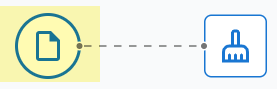
- Data Source view
- Use the Data Source view to modify the dataset schema or any settings that affect the
entire dataset.
For more information, go to Manage the dataset schema or Set data source options.
Adjust the pipeline display


Note
You can drag and reposition nodes for optimal visual organization.
Available nodes
- Data Source
- Cleanup
- Merge
- Reshape
- Output
Data source nodes

 You can also select Add Data Source from the canvas context menu.
For more information on data source nodes, go to Source node basics.
Cleanup nodes
 |
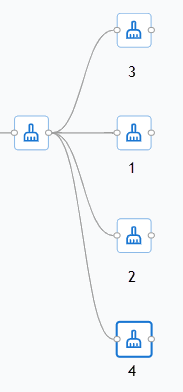
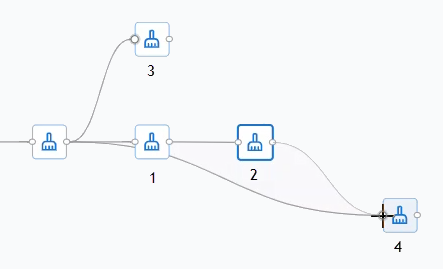
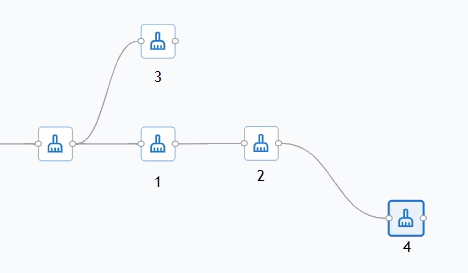
To add an unparented cleanup node, either select Add Cleanup from the canvas context menu.
For more information on data cleanup nodes, go to Cleanup step basics.
Data merge nodes
 |
 |
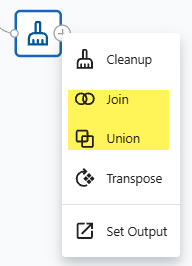
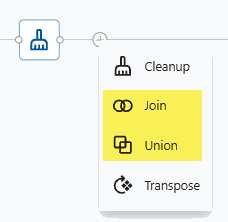
To add an unparented data merge node, either select Add Join or Add Union from the canvas context menu.
For more information on data merge nodes, go to Merging datasets.
Reshaping nodes
 |
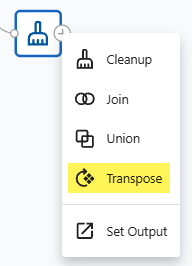
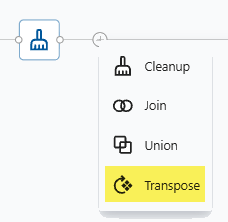
To add an unparented reshaping node, select Add Transpose from the canvas context menu.
For more information on reshaping nodes, go to Transpose datasets.
Output nodes
 |
To set an output node, open the right-click menu and choose Set Output from a parent node. From here, you can send a copy of the cleaned data to a Minitab project or a Minitab Dashboard.

For more information on exporting the data or the entire Data Center pipeline, go to Export data and projects.
Refresh the pipeline
Use Refresh to reprocess the data transformations within the data pipeline. Only Data Source nodes can be refreshed independently.

To refresh an individual data source, select Refresh from the source node context menu. If a data source is not accessible, you will be prompted to reconnect or browse for the file.
Undo/Redo pipeline changes
Use Undo or Redo to reverse or reapply recent changes made to the pipeline.
You can undo and redo multiple changes while editing a pipeline. Undo and Redo history is available only during the current editing session.

Connector lines
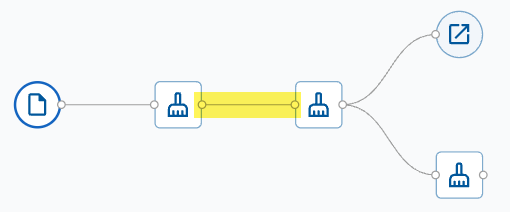
Connector lines define the flow of data through a pipeline by linking nodes together. They show how data moves from one nodes to the next and determine the order in which pipeline steps are executed.
- Create a connector line
- Create a connector line by linking the output of one node to the input
of another node. To remove a connector line, select it and delete it.
Note
A node must be connected to other nodes through connector lines to participate in the pipeline's data flow.
- Rearrange connector lines
- Select an existing connector line and drag one end to a different node to reconnect the line and update the pipeline flow.
- Insert nodes from a connector line
- Select the Insert icon on a connector line to
insert a node between two connected nodes.