Join datasets

You can combine two datasets into a single dataset by matching rows based on common column values. Joining datasets allows you to enrich your data by bringing related information together for analysis and reporting.

Join requirements

A Join combines two datasets based on one or more common columns. To configure a join, you must specify the following:

  • Primary Dataset: The main dataset that forms the base of the result.
  • Secondary Dataset: The dataset that will be combined with the primary dataset.
  • Join Conditions: At least one join condition that defines how the rows from each dataset are matched.
  • Join Type: Defines how unmatched rows are handled.

Add a join condition

Use Join Conditions to define how rows from two datasets are matched. Each condition pairs one column from the first dataset with a corresponding column from the second dataset.

  1. Specify the primary and secondary datasets.
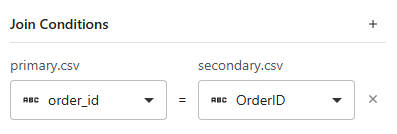
  2. Select a column from both datasets to complete the first join condition. Select the + button to add new condition rows. Each row represents one column comparison.
  3. Select columns to match. For each condition:
    • Use the left dropdown to select a column from the first dataset.
    • Use the right dropdown to select the matching column from the second dataset.
    Note

    The selected columns must contain related values (such as IDs, names, or codes). Only exact matches (Equals =) are supported.

  4. You can add multiple conditions to refine how rows are matched. When multiple conditions are used:
    • All conditions must be true for rows to match.
    • This works like an AND comparison.
    For example,
    • Email matches Email Address
    • AND Zip Code matches Postal Code
    Tip

    Select X on a condition row to remove the condition.

Use the following guidelines to improve matching accuracy.
  • Ensure the columns you select contain comparable data. For example, use both numeric or both text columns.
  • Use consistent formatting, such as spacing and capitalization for best results.
  • You can define up to ten join conditions per join configuration.

Manage Columns

Select some or all columns to include in the join results. You can rename columns as needed.
Note

Sample values show the most common values from the input data.

Join Type

Join Type Results
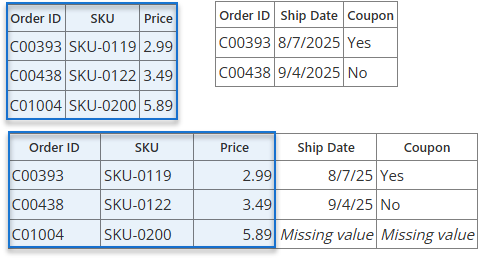
Primary (LEFT JOIN) All rows from the primary dataset, plus matches from the secondary dataset
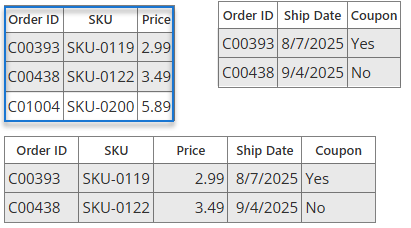
Matching Only (INNER JOIN) Only rows that match in both datasets
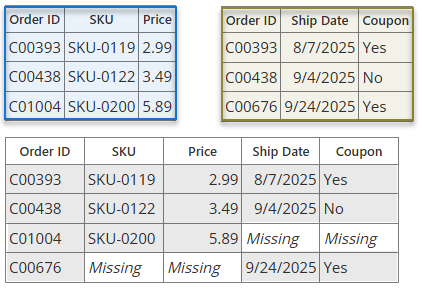
All Fields (FULL JOIN) All rows from both datasets

Primary (LEFT JOIN)

Returns all rows from the primary dataset and the matching rows from the secondary dataset based on join conditions. If no match is found, missing values are returned for the secondary dataset columns.

Matching Only (INNER JOIN)

Returns only the rows that have a match in both datasets based on join conditions. Rows without matches are excluded from the result.

All Fields (FULL JOIN)

Returns all rows from both datasets. When rows match, their columns are combined into a single row. When no match exists, missing values are used for the unmatched dataset’s columns.