Using Graphics Tutorial
Adding graphics to your simulation can help you to communicate ideas, and also aid visualization of the process. Below are a few examples of ways to add graphics.
Step 1 - Import a Background Image
Adding a background image to your simulation helps put it into context; especially for people you might be communicating with.
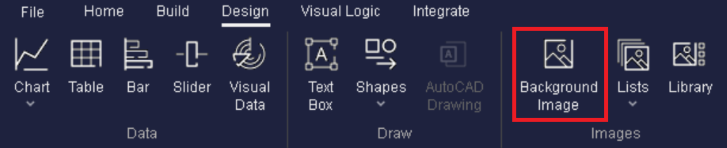
Your cursor will become a cross, and you can decide where on the screen to place the image you're about to select.
Choose a JPEG image from your computer. If you save a Visio diagram as a JPEG, it can easily be brought in to demonstrate your process as a flow chart ; blueprints and floorplans are also popular choices for demonstrating a process to others.
Step 2 - Change the images of your objects
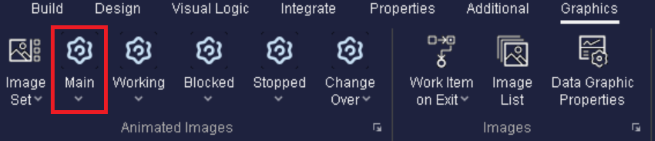
This can be done for any of the objects in your simulation.
Step 3 - View the status of different objects in your simulation
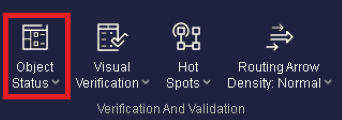
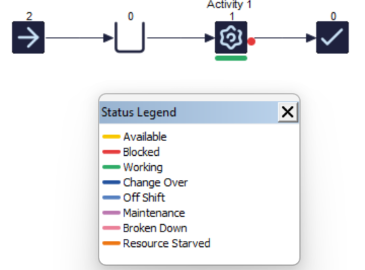
This allows you to easily see which objects in your model are in which state.
Step 4 - Change the Work Item Image
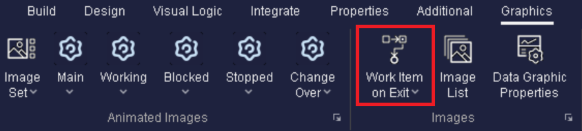
Select any Activity, and on the Graphics tab, choose 'Work Item on Exit'. This enables you to choose what a Work Item will look like when it leaves that Activity. This is especially useful when working on simulations where the Work Item could look different at different stages in your process (i.e. Production Lines).
