Hot Spots

Hot Spots provide an additional visual verification method to quickly see results based on some key elements of the simulation.
By enabling Hot Spots, simulation objects will become highlighted based on what metric you are measuring. The "hottest" object's highlight will have the least transparency, and will be indicated with a number 1. Hot Spots are shown when the simulation time is greater than the warm up time.
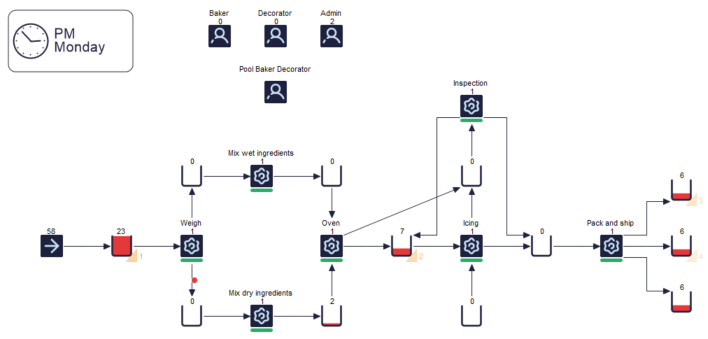
Example simulation demonstrating Hot Spots enabled for Activities and Queues
Display
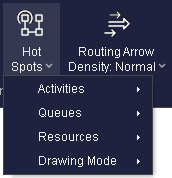
Activities To enable Hot Spots for Activities, navigate to .
- Highest Working Utilization %
- Lowest Working Utilization %
Queues: To enable Hot Spots for Queues, navigate to Hot Spots > Activities > Show Queues.
- Highest Current Contents
- Highest Average Contents
- Highest Average Waiting Time
Resources: To enable Hot Spots for Resources, navigate to .
- Highest Working Utilization %
- Lowest Working Utilization %
Show Top: For each simulation object, you can show up to 10 of the hottest objects.
Hot Spot Color: Use the color picker to set the Hot Spot color for each simulation object.
Drawing Mode: Use this menu to choose the display of the Hot Spots on your simulation window.
