Transport Example
All these worked examples are provided in the EXAMPLES directory in Simul8. All transport example file names begin with "Transp".
Stage 1
- One Path
- One Vehicle
- 2 Loaders
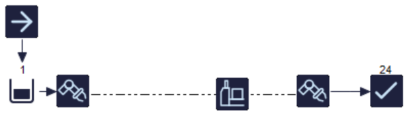
Start by creating a Vehicle Class (this will automatically create a Path Network and one path because all Vehicle Classes must belong to a Path Network, and there is not much point in having a network of paths that contains no paths.
Click the Vehicle button on the Advanced Building Objects tab in the Simulation Drawing Panel.
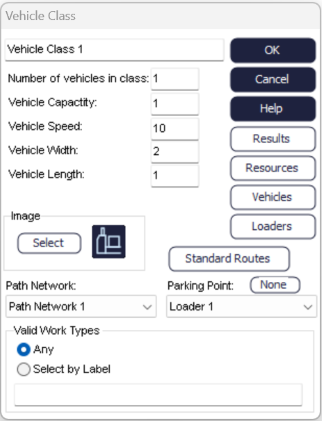
When the dialog is opened by clicking on an individual Vehicle its CONTENTS button is enabled so that the Work Items currently carried on the Vehicle can be inspected.

The default icon for a Vehicle is a fork lift. The path is shown as a dotted line when Simul8's Route Arrow button is down. (Paths are not shown as the simulation runs).
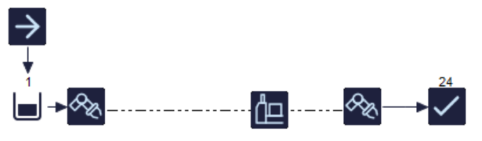
Create a Start Point, Queue and Loader. (The Loader button is under the Continuous Building Objects tab in the Simulation Drawing Panel).
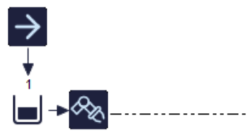
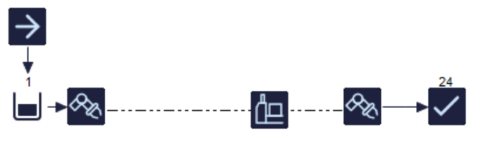
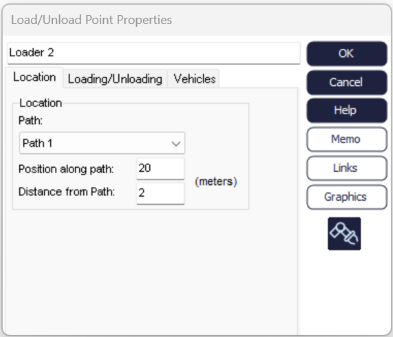
Simul8 has automatically connected it to the only path available but we also have Loader 1 at position 0 (this is 0 feet or meters from one end of the path). Change the Position on Path 1 to 20 (the default length of a path) so that this second Loader is connected to the other end of the path).
Click OK back to the main screen and run the simulation.
The Vehicle transports Work Items from Loader 1 to Loader 2.
Why was the work taken to Loader 2? To make it very easy to build Simul8 simulation with paths and Vehicles there is a default rule that work arriving at a Loader will be taken to any Loader that has an out going routing arrow.
Stage 2
- 3 Loaders
- Job Matrix for Routing control
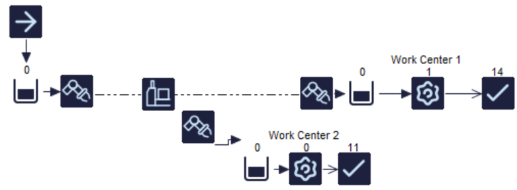
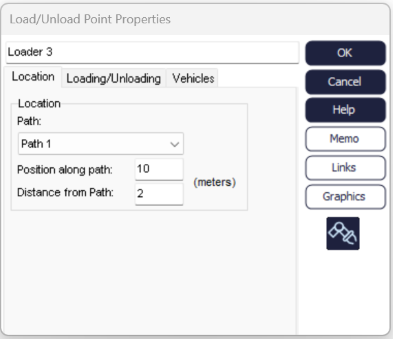
Then add a third Loader that also feeds a Queue, Activity and End Point.
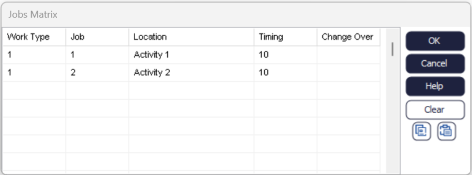
(Double click the Location cells to be able to select from a list of Activities). The timing column is not used in this example.
- Click the Start Point.
- Click Actions.
- Click Choose a Label to change.
- Click New and create a Label called JOB, return to the actions dialog.
- Click SET TO: and then choose ROUNDED UNIFORM for the distribution of values and set the "upper bound" to 2.
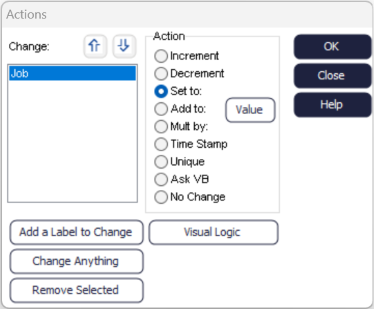
Click OK back to the main screen and run the simulation.
See that the Vehicle goes to Loader 2 and Loader 3 (it automatically works out what Loader feeds the Activity that is relevant for the job - as defined in the Jobs Matrix).
