Sub-Processes are a great way to hide groups of objects that you do not need to see at all times. They are especially useful if you have a large simulation where it is hard to take in the whole flow in one or if you have a group of objects that are required to perform the right logic but can be hidden most of the time.
With a complex simulation you may want to summarize your simulation at different levels. This can be achieved by creating a Sub-Process or even a Sub-Process within a Sub-Process to any level of depth you require.
To create a Sub-Process, start by dragging a box around the Objects you would like in the
Sub-Process and right clicking the mouse. Choose 'Create Sub Process' from the
menu displayed.
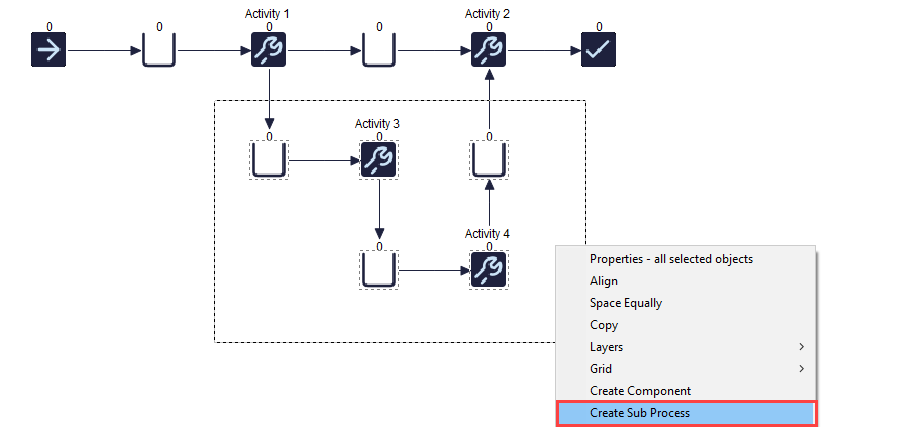
All the Objects inside the box are then moved to the new Sub-Process window. It can also be
changed to a Tab by selecting this from the within the
Simulation Windows Preference section.
Then to enable it for the Sub-Process in question, untick the "Window not Tab" option
within the Windows Properties Dialog.
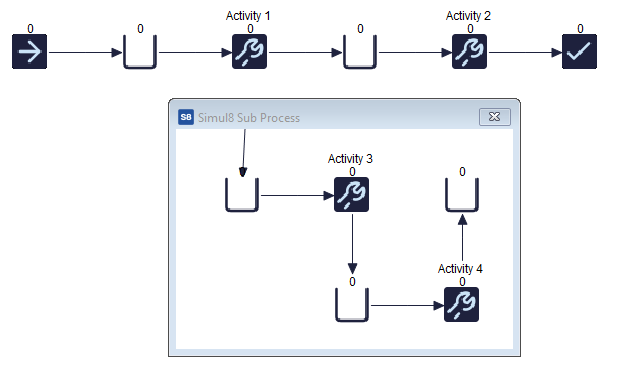
The floating Window can be closed via the close button in the right-hand corner of the new
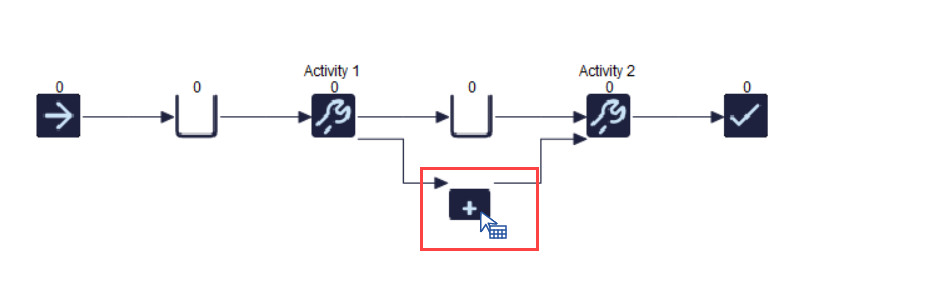
window. When a Sub-Process is closed its contents is represented by a single icon on its
parent window. You can reopen the Sub-Process by clicking on its icon. The mouse arrow
changes to a special shape to indicate than the icon represents a Sub-Process and not a
single simulation object.
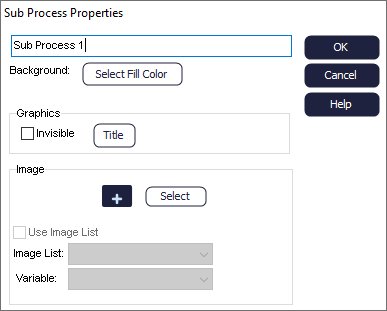
To change the icon or name used to represent a Sub-Process, right-click and select
'Window Properties'. A dialog then opens, allowing you to alter the name, if
it is to be visible, the Object image on the parent window as well as the color to be
used on the Sub-Process window when open.
A Sub-Process can be removed by opening the Sub-Process window and clicking the S8 icon in
the top left corner to bring up the system menu. A Sub-Process can be removed by either
deleting the window alone or the window and its contents.
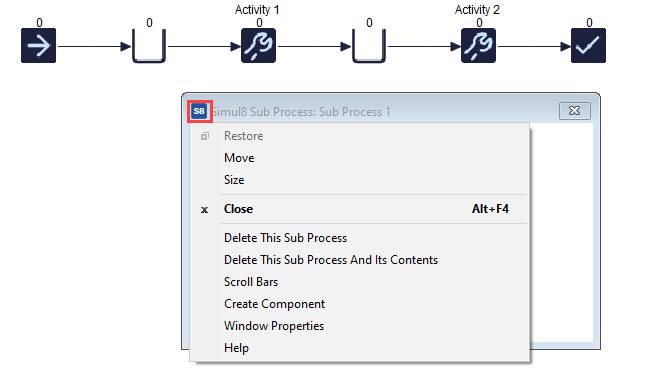
This menu contains the options to either delete this Sub-Process or the Sub-Process and its
contents. Deleting a Sub-Process and not its contents places all the Objects that are in
the Sub-Process onto the window's parent window (in the same location as they
appear on the screen before the Sub-Process was deleted).
Note
You
cannot delete a Sub-Process if it currently has one or more Sub-Processes itself.
You can also not delete a Sub-Process unless its parent is currently
open.
A Sub-Process can also be used to create Components. Open the Sub-Process and then click on the S8 logo
in the top left corner. This will open the System Menu, offering the option to
'Create Component', similar to the right click option normally used.
