Multi-task Timing
Using this feature you can control an Activity's process time by defining
multiple tasks that occur at that Activity. Each task can have its own process time,
Resource and image.
To set an Activity's process time to multi-task, start by selecting the Activity and
chose Timing Orientation. From the Timing Orientation dialog select "Use Multi-task" and
click the Details button to view the Multi-task Timing dialog.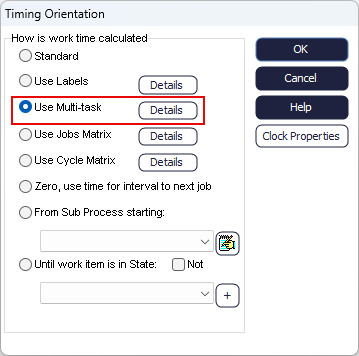
Multi-task Timing properties table
Each row in the properties table represents a task that will occur at the Activity,
with tasks carried out in order from top to bottom row. Use the Add Row and Delete
Row buttons to add or delete tasks from the table. The Add Row button will also copy
the details of a selected row, making it quicker to copy any Activities with similar
parameters.
Multi-task Timing table columns
- Description
- Enter the name/description of the task.
- Distribution
- Select the cell to view a drop-down list of available distributions and select one you want.
- Distribution Parameters
- The parameters of the distribution vary with the type of distribution selected. Columns are automatically grayed out if the parameters are not required and the column headers will update based on the selected distribution. The column headers will also update based on the selected task. You can also double-click each parameter cell to open up the formula editor.
- Resource
- Double-click this cell to see a list of all available Resources in your simulation and select the Resource you would like to assign to a task. Multi-task Timing uses default Resource behavior e.g. it will assume 1 Resource is required before that task can start and will be released as soon as the task has completed.
- Image
- Double-click this cell to show a list of all images available in your simulation. Simul8 will use the selected image when this task is active.
An example of Multi-Task Timing
The simulation below demonstrates a simple doctor clinic process. Patients arrive and wait
for a treatment room to become available. In the treatment room the patient is seen
by the nurse, then the doctor, then the pharmacist and finally by the nurse again.
We can simulate all these treatment room Activities with Multi-task Timing.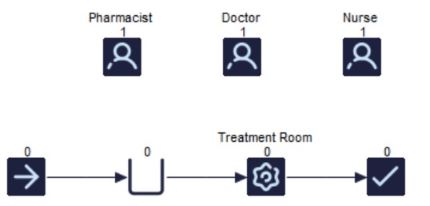
The image below shows how to set this up using Multi-task Timing.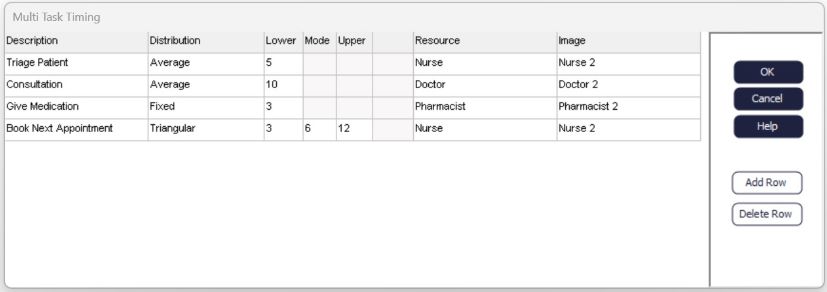
The treatment room timing will work as follows:
- A patient will not enter the treatment room until a nurse is available.
- When a nurse is available the patient will enter the treatment room and the nurse will triage the patient, taking an average time of 5 minutes.
- Once triage is complete the patient will wait in the treatment room until a doctor is available to start their consultation.
- When a doctor is available the patient will spend on average 10 minutes receiving their consultation.
- The patient will then await the pharmacist in the treatment room to receive their medication, taking on average 3 minutes.
- Lastly, the patient will await a nurse in the treatment room to discuss the next steps/book their next appointment.
All tasks will be carried out in the treatment room and the patient will spend on average 24 minutes in the treatment room. However, if the required Resources are not available immediately the patient will wait in the treatment room, therefore increasing the process time.
