Start Point Schedule
The Start Point Schedule allows you to specify the number of Work Items that enter a simulation through a Start Point. The arrival times and volume of items arriving are specified in a table of data.
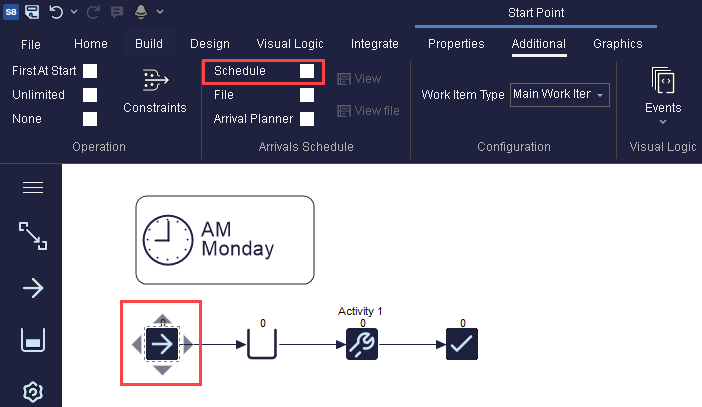
This data is also stored in an internal Simul8 spreadsheet, giving you flexibility to control it through Visual Logic at run time if needed. To access the Start Point Schedule, go to the Start Point the navigate to the Additional tab, and activate the Schedule checkbox.
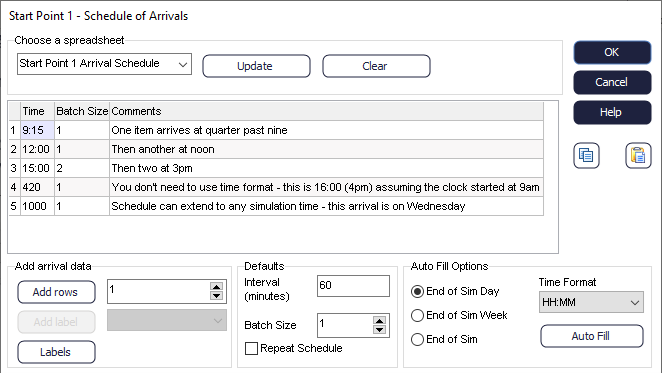
It initially opens with an example of the syntax you can use to create your Schedule.
The Schedule table includes the following columns:
- Column one contains the time that the Work Items will arrive.
- Column two contains the Batch size, i.e. the number of Work Items that will arrive at the given time. Note that if you want to use the normal Batching value as specified in the Start Point, enter a value of -1 in the Batch Size column.
- Column three contains comments of different arrivals to be used as a memo.
- Additional columns are created after clicking on "Labels". This allows you to select a Label and define the Label value of each item in the batch coming in.
You only need to input the times when Work Items are entering the simulation, taking a new row for each new batch of arrivals. Alternatively, if all Arrivals happen at once, create a single line, and set the batch size to be the volume of arrivals. This might be useful if you have a weekly delivery for instance. Arrivals can also occur at Simulation Time 0.
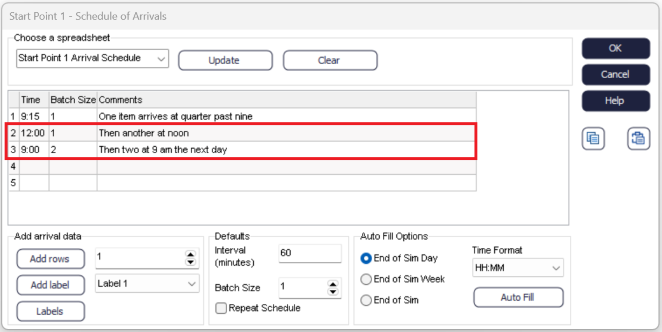
- The Time interval at which arrivals occur. Once set, time will automatically increment to the specified interval.
- The Batch size associated with all arrivals
- The time format of all arrival times:
- Number of time units past the simulation start time (i.e. 245 will set an arrival at 13:05 assuming the start time is 9am, and you are using Minutes as time Units)
- Time of arrival (i.e. 10:20 - NOTE this arrival will only happen on the first day)
For repeating your Arrivals daily, you can check "Repeat Schedule" on the bottom of the dialog.
You can access and edit the Arrival Schedule through the Internal Spreadsheet created or through the View button next to it. The schedule can also be updated using Simul8 Data Connections such as Excel, given the external spreadsheet is structured as the Start Point Schedule.
