Visual Logic Interface
The Visual Logic interface consists of a ribbon, there are two modes which display different options:
1. Normal Mode - appears when you are creating Visual Logic
sections.
2. Debug Mode - appears when you have executed a section of VL with a
break point.
The ribbon can be minimized by selecting the arrow in the top right hand corner.
Normal Mode Navigation
There are two tabs in the Normal Mode; VL Home and Commands.
VL HOME

- Open - This allows you to open other sections of Visual Logic you have created.
- Save - Save your current VL section. Note that your Visual Logic section will be saved automatically when closed.
- Undo - This will undo the last validated line of code.
- New - Create a new section of Visual Logic.
- Execute - This will execute the current section of Visual Logic.
- Parameters - Create parameters to be used in the current section of Visual Logic.
- Local Variables - Create local variables to be used in the current section of Visual Logic.
- Create - When a section of Visual Logic is highlighted you can select this to convert your selection into global or local data, parameter, Label or distribution.
- References - This will name where the current Visual Logic section is referenced by any other Visual Logic section.
- Bookmark - This allows you to mark lines of Visual Logic which you can jump to from the main Simul8 ribbon on the Visual Logic tab. This makes accessing frequently used sections quicker.
- Protect - This will password protect your Visual Logic. Users will be prompted to enter a password when trying to open Visual Logic sections.
- Call Tree - Will change the display to show the call tree representation of the current Visual Logic section.
- Editor Options - This allows you to customize your Visual Logic editor.
- Free Edit Mode - Check this if you wish the Visual Logic Editor to allow free typing.
- Print - Print your current Visual Logic section.
- Help - Directs you to the Simul8 Help Files.
COMMANDS

- Disable - Disable the current line of Visual Logic.
- Delete - Delete the current line of Visual Logic.
- Comment - Insert a comment into the current line of Visual Logic.
- SET - Inserts the SET command into the current line of Visual Logic.
- CALL - Inserts the CALL command into the current line of Visual Logic.
- IF - Inserts an IF statement into the current line of Visual Logic.
- ELSE IF - Inserts an ELSE IF statement into the current line of Visual Logic.
- ELSE - Inserts an ELSE statement into the current line of Visual Logic.
- WHILE - Inserts the WHILE command into the current line of Visual Logic.
- UNTIL - Inserts the UNTIL command into the current line of Visual Logic.
- LOOP - Inserts the LOOP command into the current line of Visual Logic.
- COMMANDS - Opens the Visual Logic command builder. This allows you to choose from all Visual Logic commands and insert them into the current line of Visual Logic.
Debug Mode Navigation
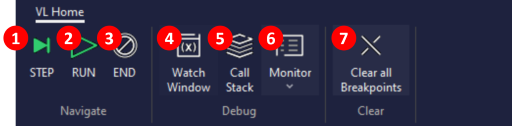
- STEP - Use to step through each line of Visual Logic.
- RUN - Continue running the simulation until the next break point.
- END - Closes Visual Logic and stops the simulation.
- Watch Window - Opens the watch window.
- Monitor - Select spreadsheets and arrays to monitor while debugging. Use drop-down to select from spreadsheets and arrays in the simulation.
- Clear all Breakpoints - Will remove all break points in Visual Logic.
