Visual Logic Folders
Visual Logic Folders allow you to sort and organize your sections on Visual Logic.
You can access Visual Logic Folders via the All button on the Visual Logic Tab.
Using Visual Logic Folders
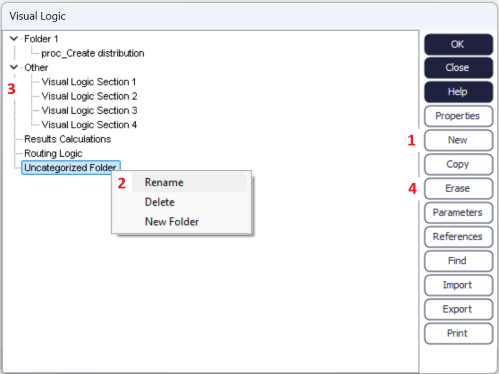
- Use the New button to create a new folder. Once a folder is created, simply click and drag a section of Visual Logic onto the folder name to place that section into the folder.
- Right-click on a folder to rename it, delete it, or create a new folder.
- Use the controls on the left-hand side to collapse or expand the contents of the folder.
- Select a Visual Logic folder and use the Erase button to remove it. If you erase a folder that has sections of Visual Logic in it, the folder will be deleted but the sections will move to the Uncategorized folder.
