Functions
A function is a Visual Logic section that returns a value. There are many examples of a function's use, the most common being a mathematical equation. Those of you familiar with Microsoft Excel probably use functions all the time, e.g. SUM, MIN, MAX etc.
Functions are a powerful method of creating tailored calculations and provide a method for reducing the duplication of Visual Logic.
In functions, like all blocks of Visual Logic, users can define their own Parameters and Local Variables.
Creating a Function
Creating a Visual Logic function is similar to creating any block of Visual Logic.
Start by creating a new block of Visual Logic through the Visual Logic tab.
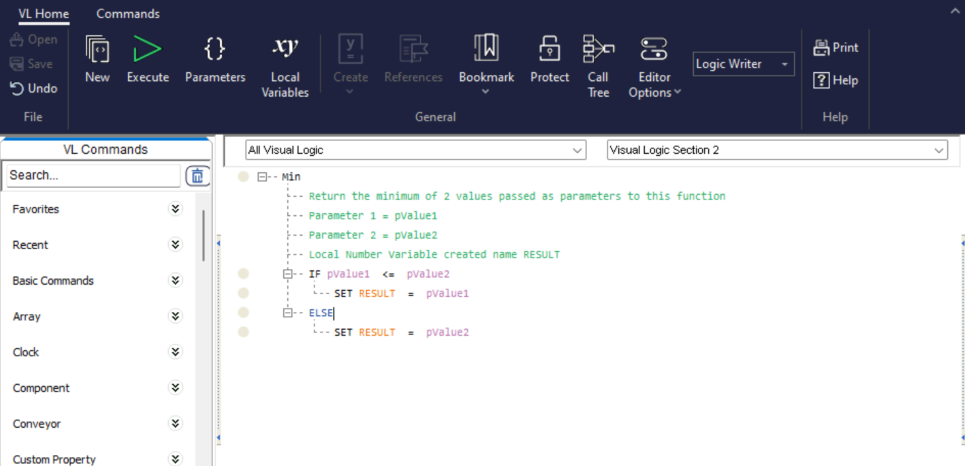
To make this new block of Visual Logic into a function simply create a Local Variable called RESULT.
Below is an illustration of a Visual Logic function to return the Minimum of two values passed to it as parameters.
Using Your Function
Now all you need to do is call the function anywhere within your simulation.
- In Visual Logic just type the name of the function to the right of a equals sign using the Visual Logic predictive text.
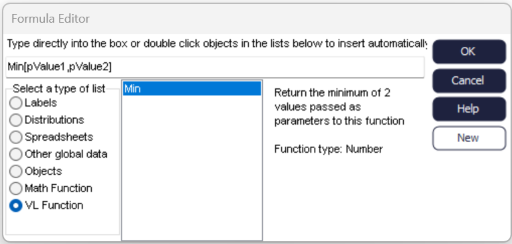
- Use the formula editor and select the Visual Logic Function radio button to
display all the available user defined Visual Logic.
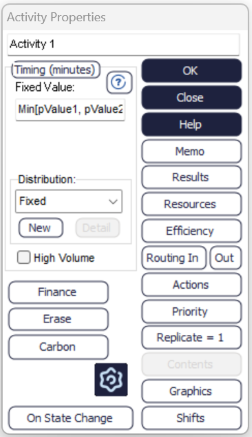
- In various object properties that accept expressions, for example Activity
timings type the name of the function.