Customizable Buttons

You can add onscreen buttons to your simulation in just a few clicks with the Customizable Button feature.
Navigate to the Insert Tab and select Button. This will open the Buttons List dialog.
Buttons List
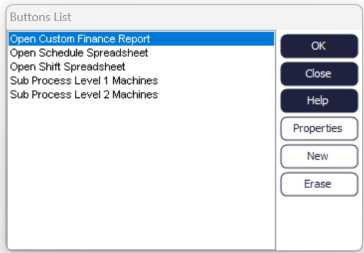
Here, you will be able create, delete, manage, and edit custom buttons in your simulation. Buttons are a useful tool because, once set up, they will allow you to perform actions within your simulation with only a click. This is also useful to demonstrate simulations to end users, as they may not have experience with Simul8, and buttons can make a simulation extremely user-friendly to someone unfamiliar with the software.
Action
These are actions that are commonly used and can be easily set up with the Customizable Button feature. Please keep in mind that for Custom Dialogs, Internal Spreadsheets, Custom Reports, and Sub Processes, that these must be created within your simulation before you can create a button.
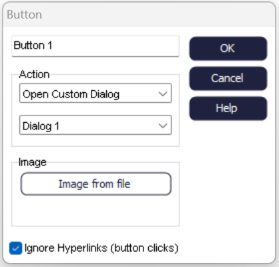
- Open Custom Dialog
-
Opens a custom dialog that has already been created within your simulation.
- Open Internal Spreadsheet
-
Opens an existing internal spreadsheet.
- Open Custom Report
-
Opens an existing custom report.
- Display Message
-
Displays a message with the text of your choosing.
- Open Sub Process
-
Opens an existing sub process
- Open KPI Summary
-
Opens the KPI Summary window
- Excel Connection
-
Imports/Exports via an existing Excel connection
- Database Connection
-
Imports/Exports via an existing database connection, such as SQL
- Google Sheets Connection
-
Imports/Exports via an existing Google Sheets Connection
Image
Select Image from file to set the image for your button. There is no set restriction for the button size, but it is generally recommended that buttons are not large graphics. You can find some ready-made button graphics in the button folder in the Simul8 Image Library.
Placing a Button into your Simulation
Once you have created a button, open the Buttons List dialog. Select the button you wish to place, and click OK. Now click anywhere within your simulation window to place the button. You can click and drag the button to move it anywhere within your simulation.
