Union datasets
Union requirements
A Union combines two datasets based on one or more common columns. To configure a union, you must specify the following:
- At least two data inputs. Select a pipeline node to add its dataset to the union.
- Column mapping for each dataset. Use Manage Columns if necessary.
- Union Type
Add and manage data inputs
Select the datasets and specify the column matches to create a successful union. All datasets should contain matching or compatible columns so the data aligns correctly in the combined result.
- Select the + button to add a new input.
- Select the pipeline node that generates the dataset to use as an input. You can have between two and four inputs.
-
Select Manage Columns to specify which columns to include and how to match them.
- Select the columns to include in the result dataset.
- Map the columns for each dataset.
Note
If data types do not match, the result column is converted to text. Numeric formats such as percentages and currencies are converted to automatic numeric.
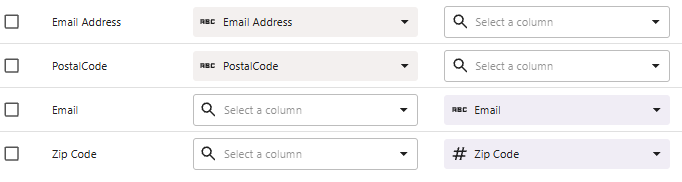
The two inputs have different column names for email addresses and postal codes.
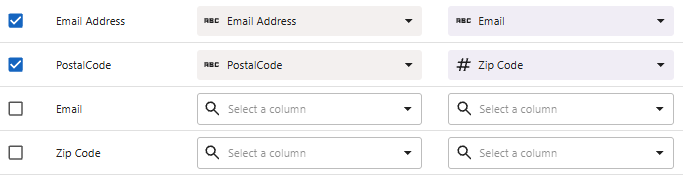
You decide to use the result names of Email Address and PostalCode, so you remap the second dataset accordingly.
Tip
Use the filter option that focuses your column selection. Select All Columns, Mismatched Columns, or Enabled Columns.
Union Type
| Union Type | Results |
|---|---|
| Unique Rows (UNION) |
Rows from all inputs and removes duplicates when all column values match. |
| All Rows (UNION ALL) |
Rows from all inputs and keeps duplicates. Use when repeated rows are expected. |
Unique Rows (UNION)
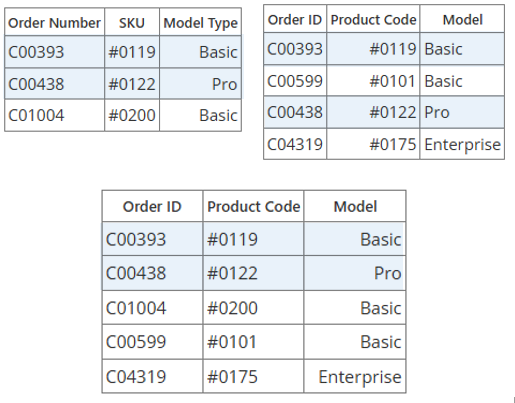
In this example, the rows that appear in both inputs appear only once in the result.
- C00393 / #0119 / Basic
- C00438 / #0122 / Pro
All Rows (UNION ALL)
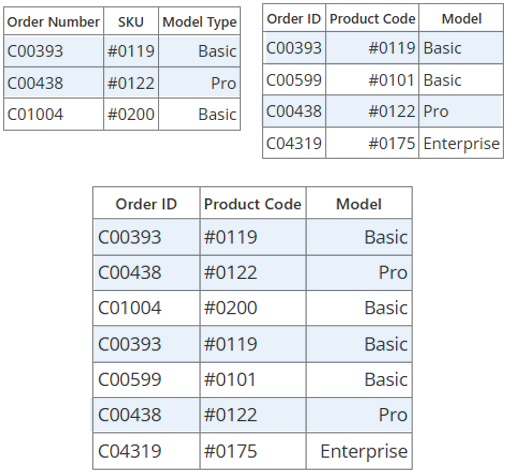
In this example, the duplicate rows appear twice in the result because they exist in both inputs.
- C00393 / #0119 / Basic
- C00438 / #0122 / Pro
